Huawei / SFP optical transceivers

Huawei H902CGUF Uplink Board Equipment information & support

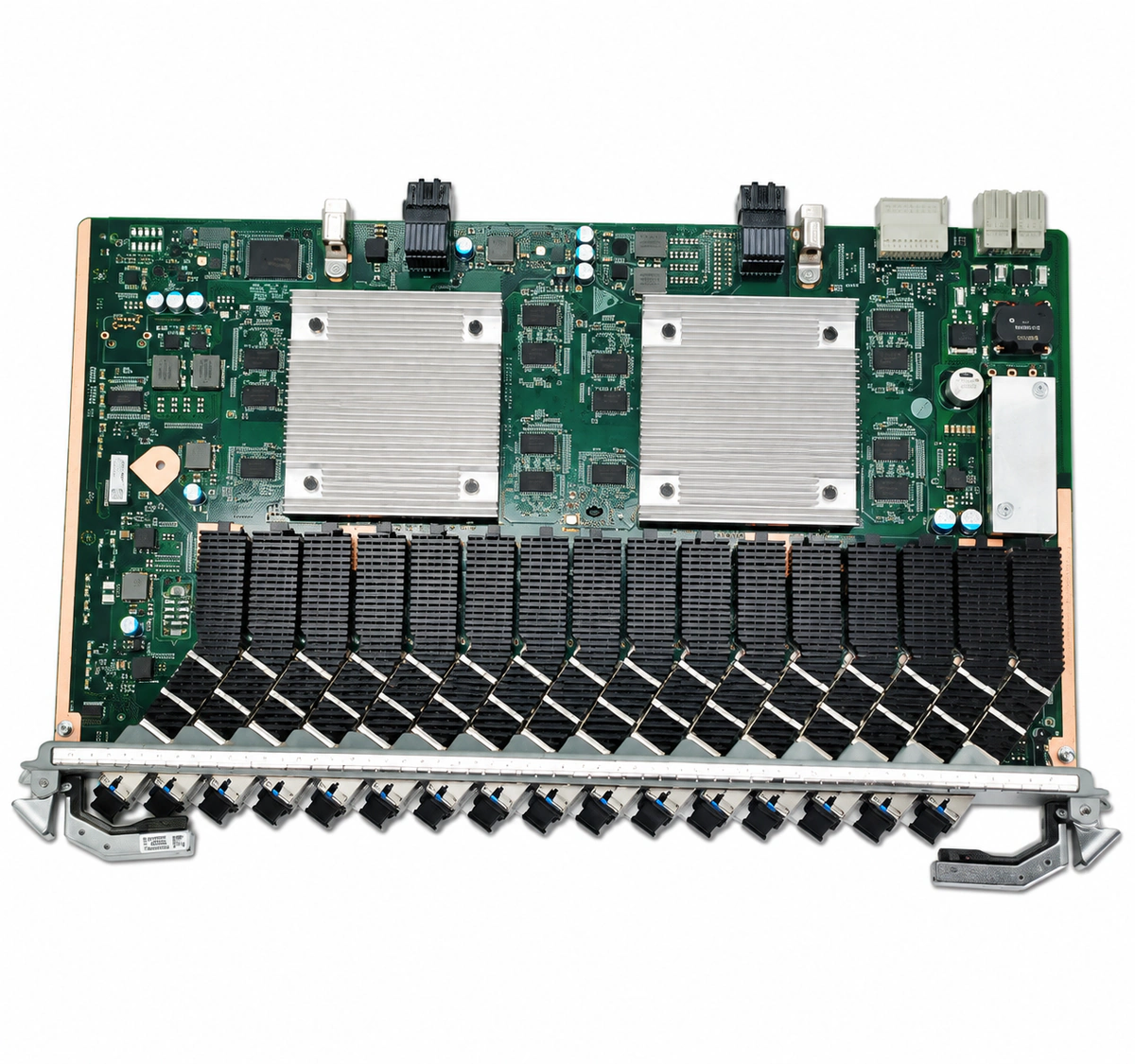
The Huawei H902CGUF is a high-availability GE/10GE optical and electrical uplink interface line card engineered for Huawei SmartAX OLT chassis, providing non-blocking upstream bandwidth aggregation toward metropolitan core IP networks.

Equipment information

Brand
Huawei
Equipment model
Huawei H902CGUF Uplink Board
Equipment type
SFP optical transceivers
Controller / software version
Confirm against the installed equipment
View full product specifications
Huawei H902CGUF Uplink Board Official Product View 4

Information below comes from the current product catalogue. Confirm the controller, software version and configuration of the installed equipment separately.

Board Type
Integrated GE/10GE optical/electrical uplink transmission interface board
Port Density & Specs
Multiple GE/10GE high-bandwidth wire-speed uplink interfaces
Supported Chassis
Huawei SmartAX MA5800 / MA5600 series distributed platform
Subscriber Capacity
Supports multi-link LACP aggregation and millisecond-level dual-homing protection switching
Typical Power Consumption
< 35 W
Operating Temperature
-40°C to +65°C

Alarms & troubleshooting

OPT_LOS (Optical Loss of Signal)
RUN/ALM LED solid red, port LINK/ACT LED off
Optical fiber broken, contaminated or loose optical connector, peer laser disabled, or RX optical power below receiver sensitivity threshold
1. Run the 'display port ddm-info' command to query the port's received optical power. 2. Measure the input optical power using an optical power meter to verify it falls within the nominal range. 3. Clean the LC fiber patch cord end-faces and the optical transceiver receptacle using an optical fiber cleaner. 4. Check the peer port Tx laser status and attenuators; if the fiber link is normal but no optical power is detected, replace the SFP module.
LASER_BIAS_HIGH (Laser Bias Current High)
RUN/ALM LED blinking amber slowly (0.5Hz), port LED solid green
Aging optical transmitter laser diode, failing internal thermistor, or prolonged high-temperature operation driving bias current past maximum threshold
1. Run the 'display port ddm-info' command to read the real-time Tx Bias Current and threshold values. 2. Inspect the board operating temperature and chassis fan speed to ensure proper thermal dissipation. 3. During a scheduled maintenance window, switch traffic away from the port and inspect gold finger contacts. 4. Replace the degrading SFP/SFP+ optical transceiver with an authorized spare part before complete failure.
OPT_TEMP_OVER (Optical Transceiver Over-Temperature)
RUN/ALM LED solid amber, chassis fan tray running at full speed
High ambient equipment room temperature, clogged chassis air filter, fan tray malfunction causing insufficient airflow, or localized heat accumulation from high-power modules
1. Run the 'display temperature all' command to check temperatures across all slots. 2. Inspect and clean the chassis dust filters, verifying unobstructed airflow through cold/hot aisles. 3. Run 'display fan 0' to verify fan tray speeds and operational status; replace the fan tray if faulty. 4. If a single optical module exhibits high temperature while neighbors are normal, replace that specific transceiver.
ETH_CRC_ERR_OVER (Ethernet CRC Error Threshold Exceeded)
RUN/ALM LED solid green, corresponding port LINK/ACT LED flashing green/amber erratically
Excessive optical fiber bending attenuation, damaged or scratched ferrule end-face, chromatic dispersion limits exceeded, or degraded PHY electrical contacts
1. Run the 'display interface [port-id]' command to monitor the rate of increase for CRC and Input error counters. 2. Use an OTDR to check for macro-bending or localized high-loss points along the optical cable. 3. Inspect the fiber ferrule end-face using a fiber inspection scope; replace damaged jumpers. 4. Reseat the optical module firmly; if CRC error packets continue to increment, replace the uplink optical module.
OPT_TYPE_MISMATCH (Optical Transceiver Type Mismatch or Unauthorized)
RUN/ALM LED solid green, port LINK/ACT LED off or blinking amber
Non-Huawei certified optical transceiver inserted, port rate/duplex configuration mismatching transceiver physical rate, or incorrect wavelength/form-factor (GE vs 10GE)
1. Run 'display port optical-module [port-id]' to check vendor credentials, part number (BOM), and wavelength. 2. Run 'display port info' to verify whether the configured port rate (GE/10GE) matches the transceiver's rated speed. 3. Modify the port speed and duplex settings using the interface configuration mode to match the installed module. 4. Remove the unsupported third-party transceiver and replace it with a genuine Huawei-certified optical module.

Access Complete Maintenance & Full Alarm Troubleshooting Manual

This page lists high-frequency critical alarm codes commonly encountered in field maintenance. Comprehensive manufacturer troubleshooting matrices, board-level repair guides, detailed electrical schematics, and firmware commissioning manuals are delivered alongside equipment upon formal project procurement, accompanied by dedicated FAE technical support.

Share on-site information

  1. 01

    Identify the exact model

    Record the nameplate, system model and controller or module model.

  2. 02

    Keep the alarm details

    Record the full alarm text, indicator colour, timing and whether it persists.

  3. 03

    Describe recent changes

    Note recent replacements, software updates or configuration changes.

Record information visible in the existing interface. Electrical measurements, disassembly and replacement should follow the applicable manufacturer's manual and be performed by qualified personnel.

Your model and these details will be added to the enquiry form for you to review before sending.

Related technical articles

Browse the technical guides or send a question about this model.

View all articles

Need a replacement module or supporting equipment?

Confirm the full model, system configuration and compatibility requirements before enquiring about suitable products.

Ask about suitable products

Have a model and an on-site issue?

Share the exact model, alarm text and observed symptoms to help identify relevant information and compatibility requirements.

Request technical support