Huawei / SFP optical transceivers

Huawei H802GPFD 16-Port GPON Board Equipment information & support

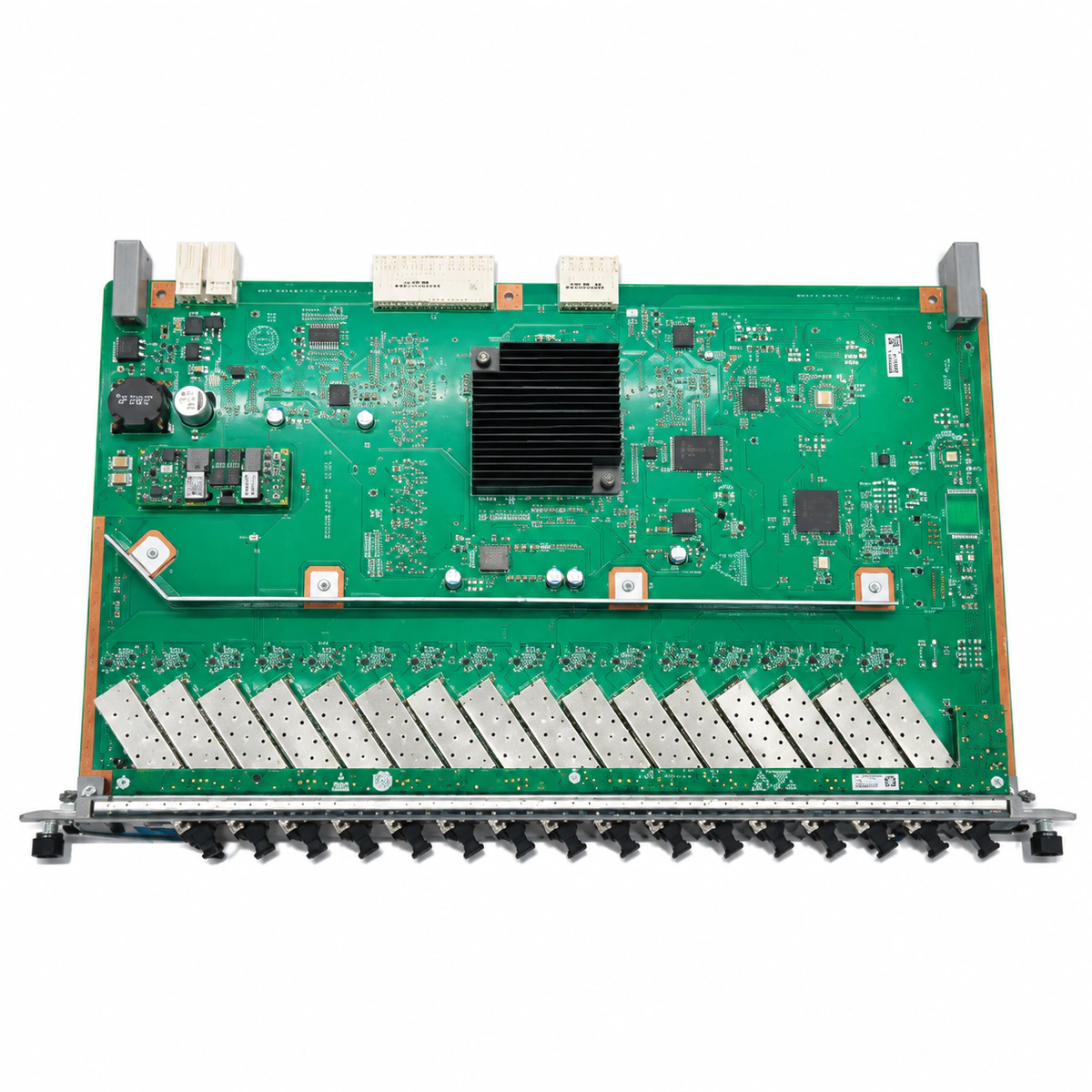
The Huawei H802GPFD is a high-density 16-port GPON interface line card engineered for Huawei SmartAX MA5680T, MA5683T, and MA5608T OLT optical chassis, supporting up to 2,048 FTTH subscriber ONUs with a 1:128 split ratio and Class B+/C+/C++ transceivers.

Equipment information

Brand
Huawei
Equipment model
Huawei H802GPFD 16-Port GPON Board
Equipment type
SFP optical transceivers
Controller / software version
Confirm against the installed equipment
View full product specifications
Huawei H802GPFD 16-Port GPON Board Official Product View 4

Information below comes from the current product catalogue. Confirm the controller, software version and configuration of the installed equipment separately.

Board Type
High-density 16-port GPON OLT central-office service interface board
Port Density & Specs
16 standard GPON SFP optical slots
Supported Chassis
Huawei SmartAX MA5680T / MA5683T / MA5608T
Subscriber Capacity
The board supports concurrent access for up to 2048 FTTH terminals
Split Ratio
Supports up to 1:128 split ratio
Typical Power Consumption
Static 40W / full load 73W

Alarms & troubleshooting

GPON_LOS (GPON Port Optical Signal Loss)
RUN/ALM LED blinking green slowly, corresponding GPON port LED OFF
Trunk or branch optical fiber broken; ODN splitter failure or disconnected patch cord; SFP optical module receiver has no optical input or Rx power is below sensitivity threshold (<-28 dBm).
1. Log in to the CLI and run 'display port optical-info' to verify Tx and Rx power of the affected PON port. 2. Use an OTDR to locate fiber breaks along the trunk/distribution cable, and check ODN patch cords for loose connections or macro-bending. 3. Clean the LC/UPC or SC/UPC optical connectors with an end-face cleaner, retest attenuation, and replace the Class B+/C+ SFP transceiver if the alarm persists.
ROGUE_ONT (Rogue ONT Continuous Emission Alarm)
RUN/ALM LED blinks amber or momentarily red, all other ONUs on the same PON port drop offline
An ONT connected to the PON port has a defective laser driver chip, emitting continuous light (1310 nm) outside its designated TDMA time slot and jamming the upstream optical channel for all other ONTs.
1. Enable and check 'anti-rogueont continuous-send-laser' detection to automatically locate and isolate the rogue ONT ID. 2. If automatic isolation fails, execute 'rogue-ont check' in the interface view or disconnect branch fibers at the splitter one by one to find the interfering line. 3. Once identified, deactivate the rogue ONT on the OLT, disconnect its drop cable, and dispatch field tech to replace the hardware.
OPT_MOD_TEMP_HIGH (Optical Module High Temperature Threshold Exceeded)
RUN/ALM LED solid amber, chassis fan tray increases to 100% full speed
Ambient equipment room temperature too high; chassis air filter clogged causing airflow restriction; OLT fan tray failure; internal SFP thermistor failure or abnormal thermal dissipation (>85°C).
1. Run 'display port optical-info' to inspect current optical transceiver temperature and alarm thresholds. 2. Inspect and clean chassis air filters; ensure telecom room HVAC operates within normal range (20°C to 25°C). 3. Run 'display fan 0' to verify fan status; if all transceivers are hot, resolve chassis airflow; if isolated to one SFP, replace the failing optical transceiver.
OPT_TX_BIAS_HIGH (Optical Module Laser Bias Current High / Degradation)
RUN/ALM LED green, corresponding PON port LED solid green, NMS reports threshold warning
DFB laser diode aging inside the SFP transceiver; the Automatic Power Control (APC) loop keeps driving higher bias current to maintain target optical output power, exceeding safety limits (>60-80 mA), indicating imminent failure.
1. Execute 'display port optical-info' on the target port to check current Tx Bias Current against the warning threshold. 2. Prepare a genuine Huawei Class C+/B+ GPON optical transceiver as a hot spare. 3. Schedule a maintenance window to swap out the degrading SFP module and verify laser stability via 'display port state'.
BD_STATUS_ERR (H802GPFD Board Hardware Self-Test Error / Offline)
RUN/ALM LED solid red, all 16 GPON port LEDs completely extinguished
Backplane connector pin oxidation or poor seating; on-board FPGA/MAC chip boot loading failure; on-board DC-DC power converter failure (12V to 3.3V/1.2V rails); backplane bus communication loss with control board.
1. Log into the control board and run 'display board 0' to verify whether the slot status is 'Fault' or 'Failed'. 2. In a scheduled maintenance window, reseat the H802GPFD card, inspect the backplane pins for bent contacts, clean edge connectors with isopropyl alcohol, and reseat firmly. 3. Execute 'board reset 0/slot' in CLI; if the board remains solid red, replace the GPFD line card and send for repair.

Access Complete Maintenance & Full Alarm Troubleshooting Manual

This page lists high-frequency critical alarm codes commonly encountered in field maintenance. Comprehensive manufacturer troubleshooting matrices, board-level repair guides, detailed electrical schematics, and firmware commissioning manuals are delivered alongside equipment upon formal project procurement, accompanied by dedicated FAE technical support.

Share on-site information

  1. 01

    Identify the exact model

    Record the nameplate, system model and controller or module model.

  2. 02

    Keep the alarm details

    Record the full alarm text, indicator colour, timing and whether it persists.

  3. 03

    Describe recent changes

    Note recent replacements, software updates or configuration changes.

Record information visible in the existing interface. Electrical measurements, disassembly and replacement should follow the applicable manufacturer's manual and be performed by qualified personnel.

Your model and these details will be added to the enquiry form for you to review before sending.

Related technical articles

Browse the technical guides or send a question about this model.

View all articles

Need a replacement module or supporting equipment?

Confirm the full model, system configuration and compatibility requirements before enquiring about suitable products.

Ask about suitable products

Have a model and an on-site issue?

Share the exact model, alarm text and observed symptoms to help identify relevant information and compatibility requirements.

Request technical support